Your Mac prints every label by itself.
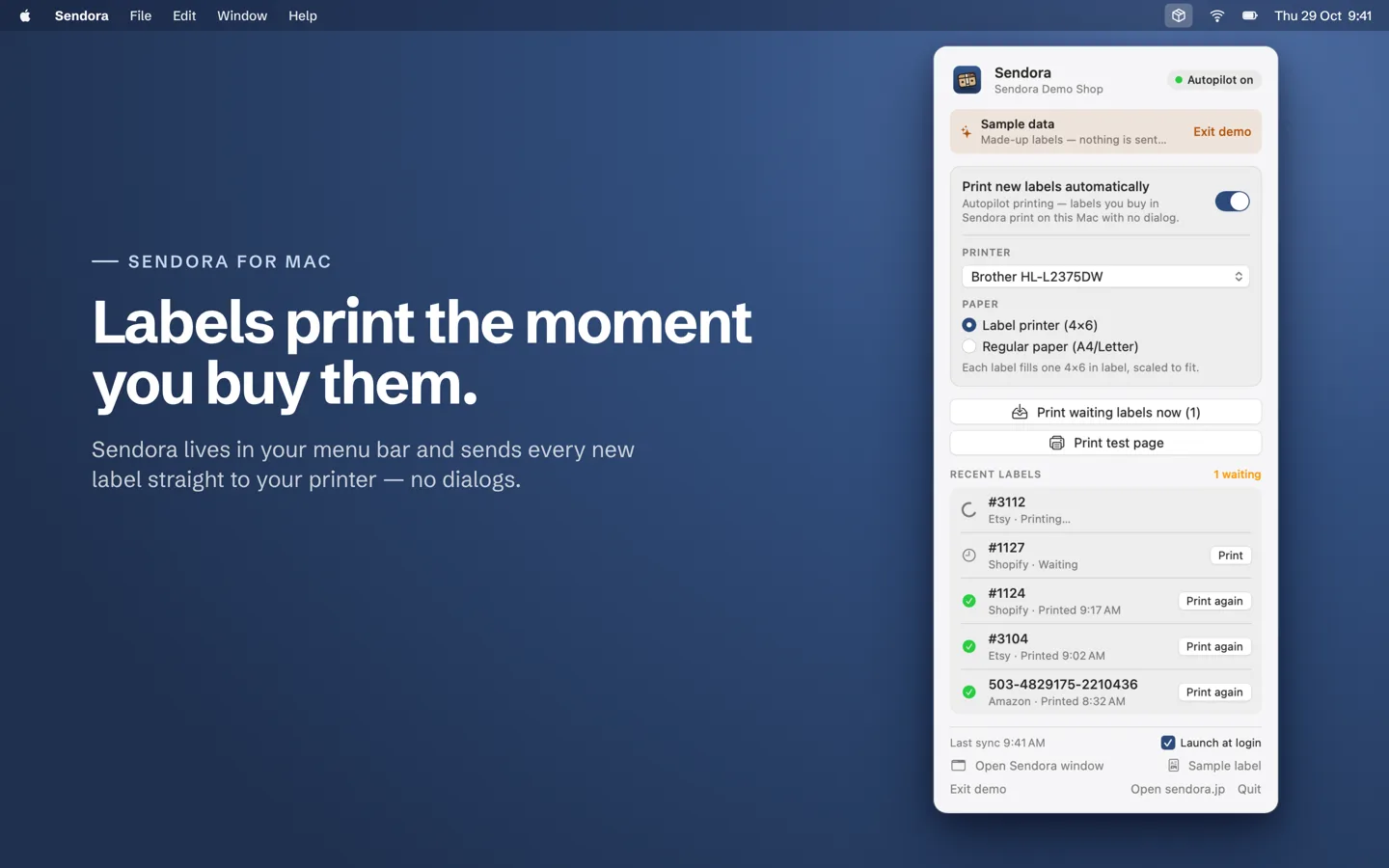
Sendora for Mac lives in your menu bar and Dock. Leave it running and every shipping label you buy in Sendora prints on your printer the moment you buy it: no print dialogs, no downloads, no files to open. Free on the Mac App Store.
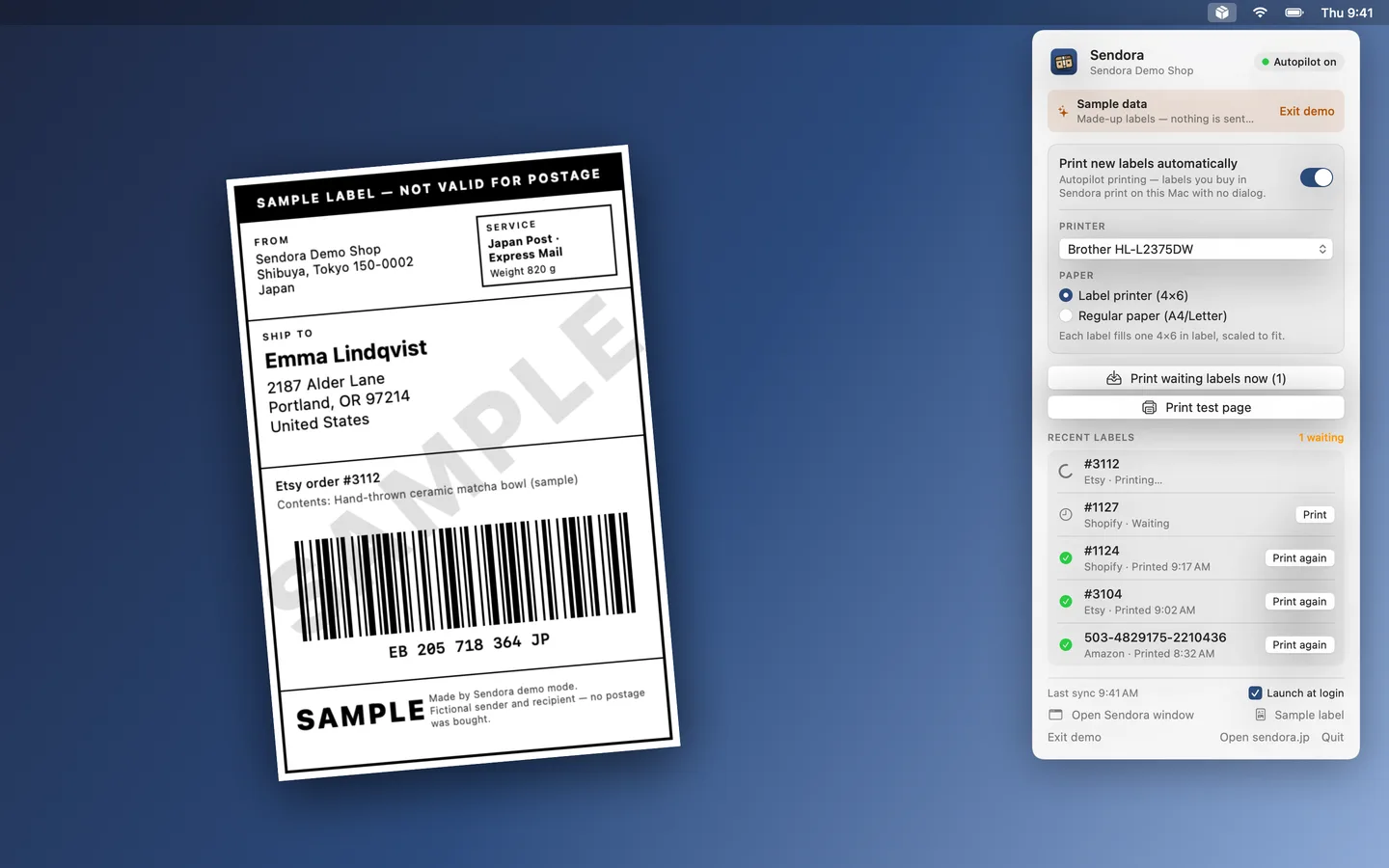
How Autopilot printing works
Your Mac becomes the printing station for your shop. You pack; Sendora does the paperwork.
- You buy a labelIn Sendora on the web or your iPhone, or Full Autopilot buys it for you.
- Your Mac gets itWithin seconds, Sendora for Mac sees the new label. No window needs to be open.
- It prints itselfOn the printer you chose, at the right size, with no dialog.
- You pack and shipTracking is already on its way back to Etsy, Shopify or Amazon.
Everything in one small window
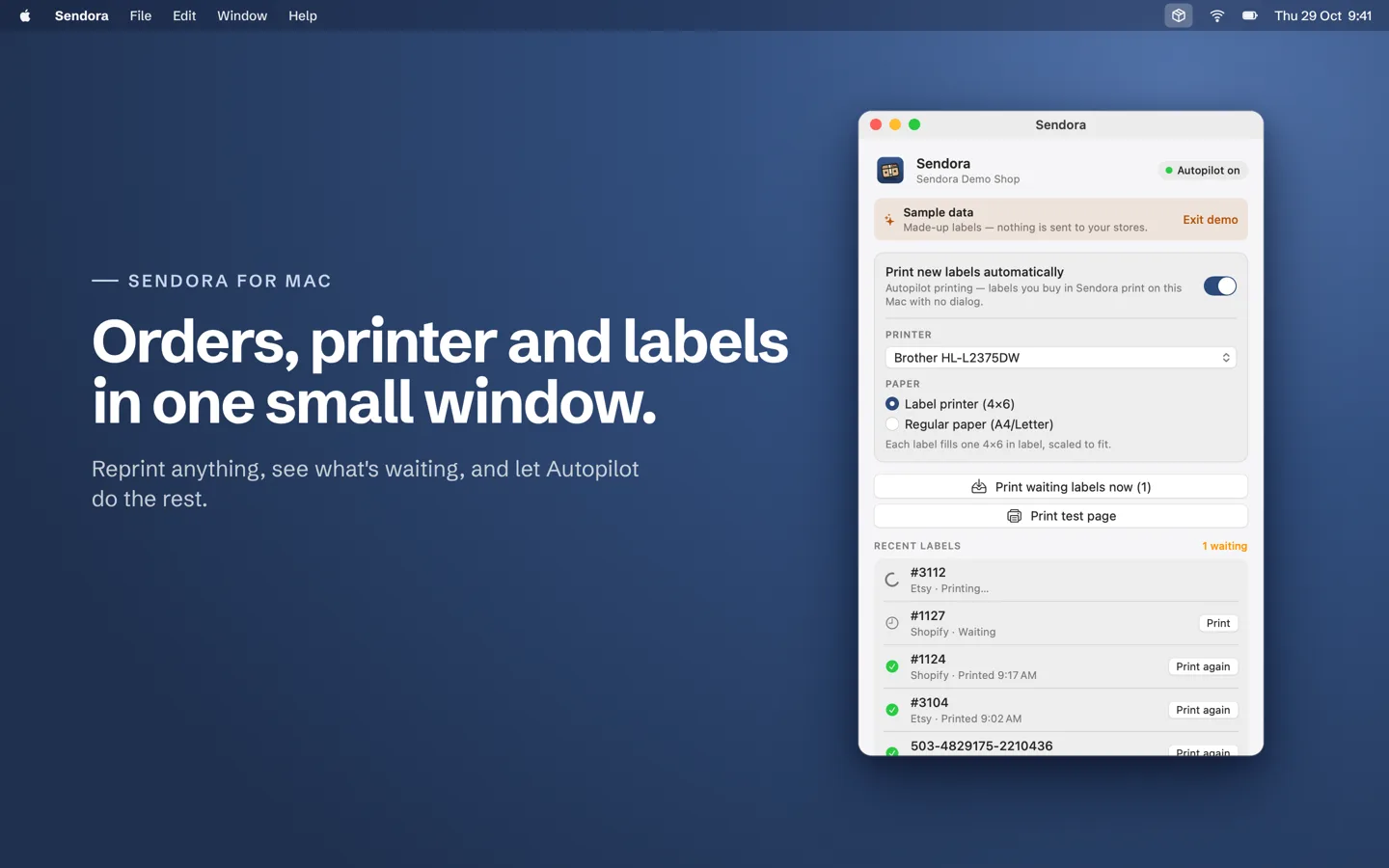
Open it from the box icon in the menu bar or from the Dock. Close the window and Sendora keeps printing in the background.
What it does
Autopilot printing
Labels you buy print by themselves, even with the window closed. Turn on Open at login and it's always ready.
Your printer, your paper
A regular A4 printer or a 4×6 label printer. A4 labels (like Japan Post) print full page at 100%; 4×6 labels print at real size, or enlarged to fill the page.
Nothing gets missed
Mac asleep? Waiting labels print when it wakes. "Print waiting labels now" catches up in one click.
Every recent label
See what's printing, waiting or done. Print again with one click, or mark a label as printed if you printed it elsewhere.
New-order alerts
A notification when a new order needs a label, so nothing sits unshipped.
Private by design
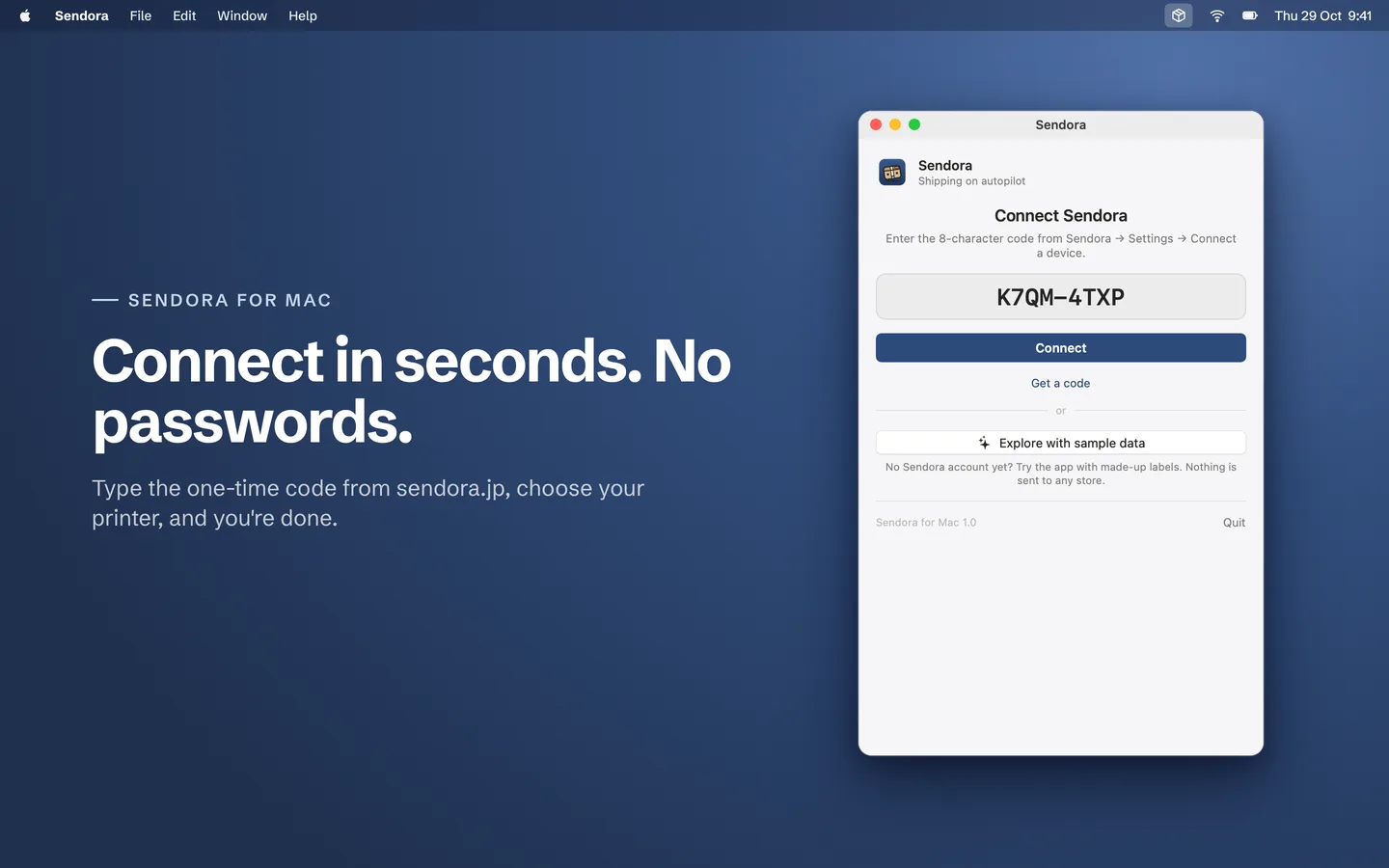
Connect with a one-time code from sendora.jp. No password is stored on your Mac, and you can disconnect it at any time.
Set up in a minute
- Create a free Sendora account at sendora.jp and connect your stores.
- Install Sendora from the Mac App Store and open it.
- On sendora.jp open Settings → Apps & printing → Connect a device, and type the one-time code into the Mac app.
- Pick your printer and paper, press Print test page, then switch on Print new labels automatically.
No account yet? Choose Explore with sample data in the app to try it with made-up labels. Nothing is sent to any store.
Questions
- Is it free?
- Yes. Sendora for Mac is free and works with any Sendora plan, including the free plan.
- Does it print with the window closed?
- Yes. As long as your Mac is on and Sendora is running (in the menu bar or the Dock), new labels print by themselves.
- What happens if my Mac was asleep?
- Labels that arrived while it was asleep print when it wakes up.
- Which Macs are supported?
- Macs with macOS 13 (Ventura) or later.
- Which printers work?
- Any printer your Mac can use: regular A4 printers and 4×6 label printers that print from macOS. Raw thermal-printer (ZPL) label files aren't supported yet.
- Do I also need the iPhone app?
- No. They work together, but each works on its own. On iPhone, iOS only lets apps print while they're open, so the Mac is the best choice for hands-free printing.
Let your Mac do the printing.
Free on the Mac App Store.